StatelessWidget, StatefulWidget, setState()
StatelessWidget
不會改變的靜態頁面,繼承StatelessWidget,並實作build()方法。
快速鍵,輸入stateless
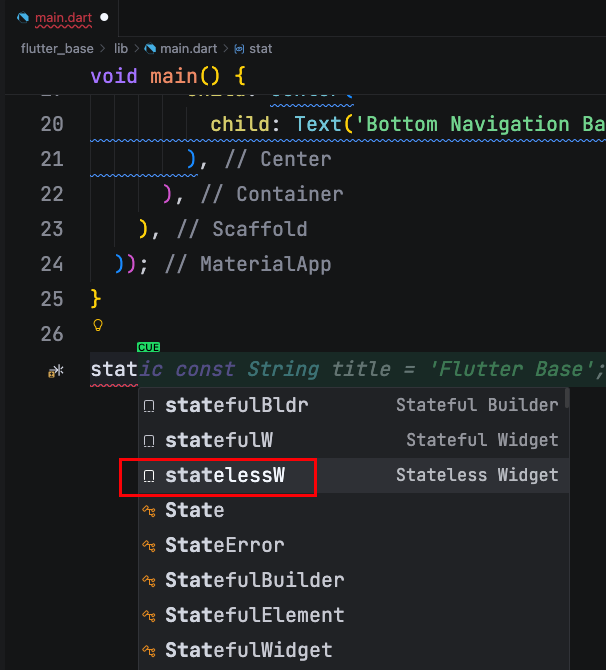
把上面MaterialApp(…)全複製到build()方法中的return 後面。
在runApp()參數設成MainPage(自訂類別名)。
1
2
3
4
5
6
7
8
9
10
11
12
13
14
15
16
17
18
19
20
21
22
23
24
25
26
27
28
29
30
31
32
33
34
import 'package:flutter/material.dart';

void main() {
  runApp(MainPage());
}

class MainPage extends StatelessWidget {
  const MainPage({Key? key}) : super(key: key);

  @override
  Widget build(BuildContext context) {
    return MaterialApp(
      title: 'Flutter Base',
      theme: ThemeData(scaffoldBackgroundColor: Colors.blue),
      home: Scaffold(
        appBar: AppBar(
          title: Text('AppBar'),
        ),
        body: Container(
          child: Center(
            child: Text('Body'),
          ),
        ),
        bottomNavigationBar: Container(
          color: Colors.amber,
          height: 50,
          child: Center(
            child: Text('Bottom Navigation Bar'),
          ),
        ),
      ),
    );
  }
}
StatefulWidget
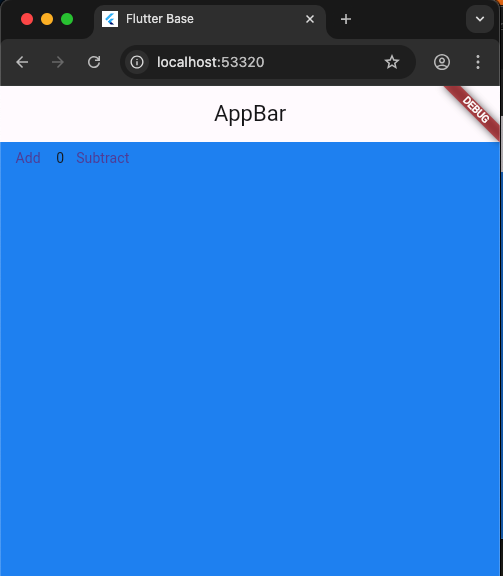
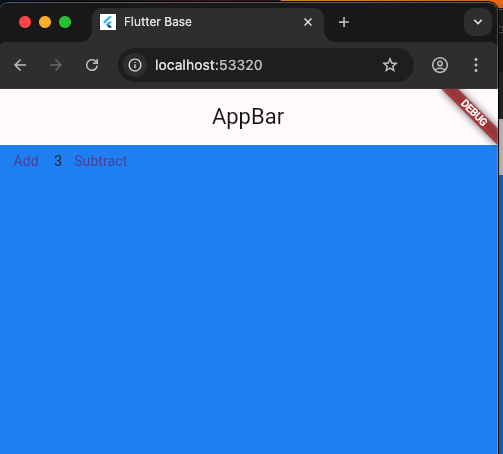
若畫面有Click按鈕,有互動,會影嚮畫面變化,要繼承StatefulWidget。
快速鍵,輸入stateful
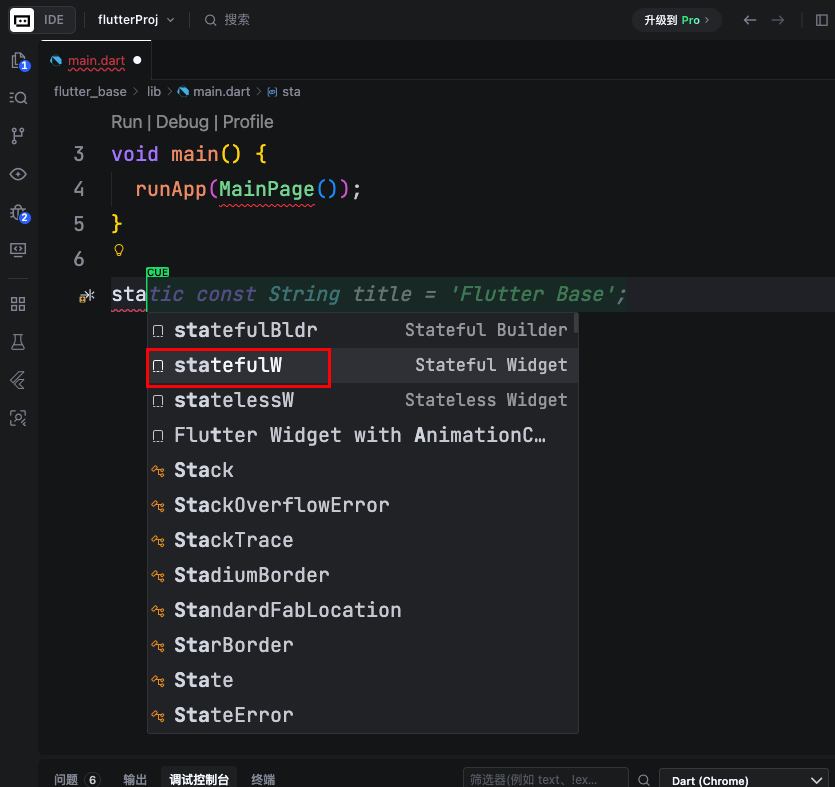
建立二個類別,分別繼承StatefulWidget、State,步驟如下:
- 供外部讀取,繼承StatefulWidget
- 供內部私有使用,繼承 State<供外部讀取的類別名>
- 把會變動的內容,寫在_MainPageState類別,build()方法。
1
2
3
4
5
6
7
8
9
10
11
12
13
14
15
16
17
18
19
20
21
22
23
24
25
26
27
28
29
30
31
32
33
34
35
36
37
38
39
40
41
42
43
44
45
46
47
48
49
50
import 'package:flutter/material.dart';

void main() {
  runApp(MainPage());
}

class MainPage extends StatefulWidget {
  MainPage({Key? key}) : super(key: key);

  @override
  _MainPageState createState() => _MainPageState();
}

class _MainPageState extends State<MainPage> {
  int count = 0;
  @override
  Widget build(BuildContext context) {
    return MaterialApp(
      title: 'Flutter Base',
      theme: ThemeData(scaffoldBackgroundColor: Colors.blue),
      home: Scaffold(
          appBar: AppBar(
            title: Text('AppBar'),
          ),
          body: Container(
            child: Row(
              children: [
                TextButton(
                  onPressed: () {
                    setState(() {
                      count++;
                    });
                  },
                  child: Text("Add"),
                ),
                Text(count.toString()),
                TextButton(
                  onPressed: () {
                    setState(() {
                      count--;
                    });
                  },
                  child: Text("Subtract"),
                ),
              ],
            ),
          )),
    );
  }
}